
When you add your first search prompts during onboarding, OtterlyAI automatically creates your first Brand Report. For any additional reports; you create them manually.
Creating a new brand report: step by step
Step 1 — Open the Brand Report section
In the left navigation sidebar, find the Brand Report section. Click the + icon to start a new report.-2.png?width=670&height=389&name=Screenshot%20(3)-2.png)
Step 2 — Add your brand name and domain
AI engines don't always refer to brands consistently. For example, "Coca-Cola", "Cola", and "Coke" might all appear across different AI answers. Add all common variations so none of them get missed. Learn how to add brand variations →
Your main domain tracks which of your URLs are being cited by AI engines. If your brand has regional domains, a separate blog, or a subdomain you want to track, add those as domain variations too. Learn how to add domain variations →
Step 3 — Connect search prompts
Select the prompts you want this report to track. Prompts must already exist in your account before you can connect them — you can't create new ones from within the report setup screen.
Step 4 — Add competitors
Define the competitors you want to benchmark against. OtterlyAI can suggest competitors automatically based on your brand and industry, or you can add them manually. You can add as many competitors as you need — there's no limit. Learn more about tracking competitors →
Editing report settings at any time
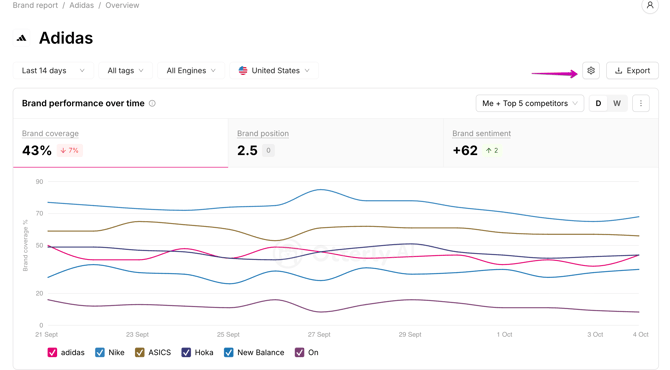
To change the brand name, domain, competitors, or connected prompts after setup, click the gear icon in the upper right corner of the brand report. This opens the full report settings panel.
How many brand reports can I create?
Unlimited.