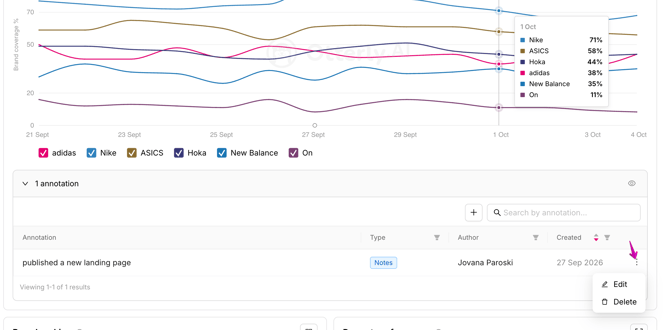
Annotations mark on your Brand Report timeline what you did and when you did it. They sit on the same chart as Brand Coverage, Brand Sentiment and Average Brand Position, so you can see which actions came before a change in your numbers.
Why annotations matter
AI search has a long feedback loop. You publish or fix something today, and the effect on AI answers shows up days or weeks later, when nobody remembers the date of the change. Annotations keep that record for you. After a few weeks, look back and see which actions came before a lift, and which didn't move anything.
Automatic annotations from Recommendations
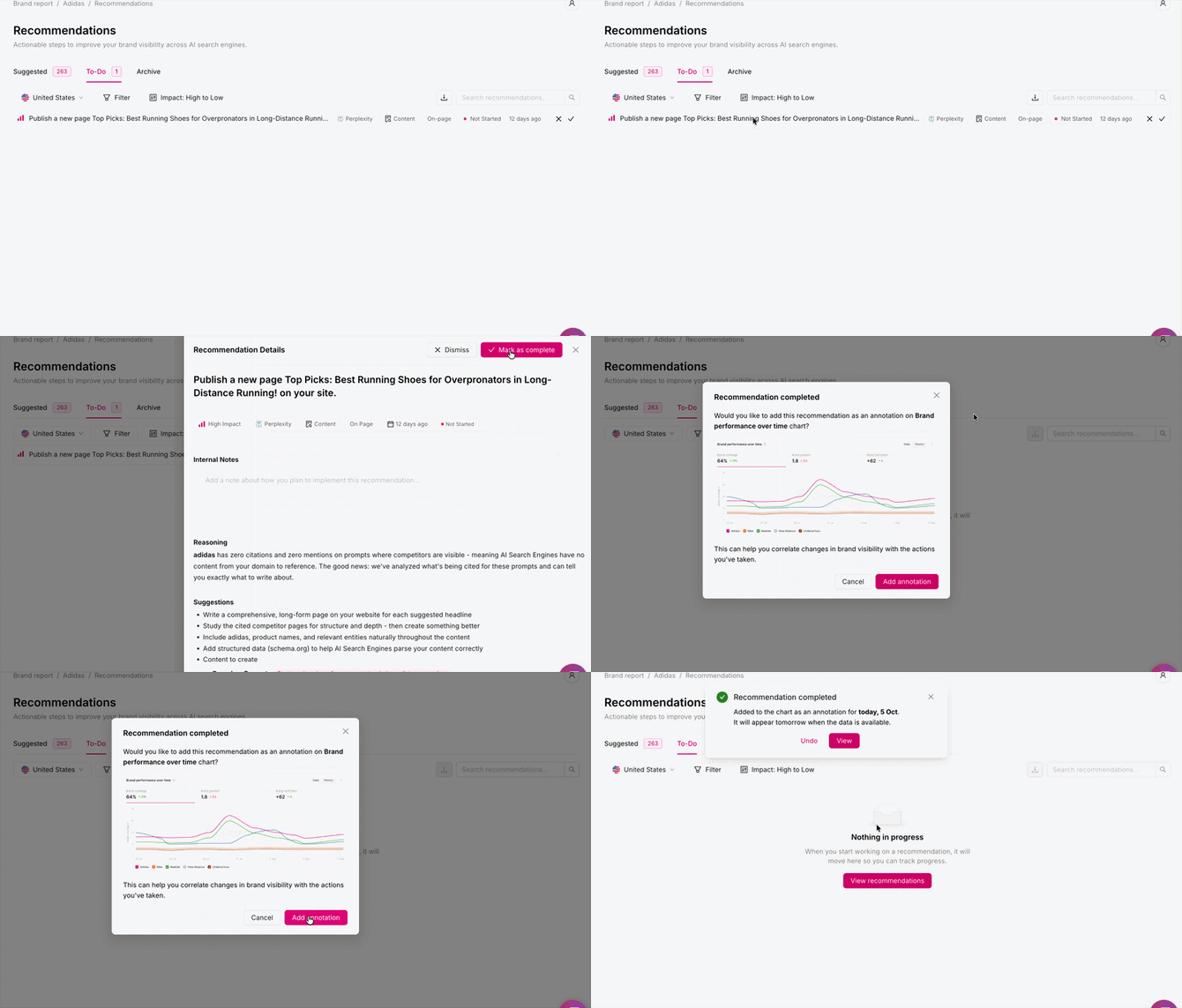
Every time you mark a Recommendation as completed, you can add it as an annotation on the Brand Report timeline.
Adding your own annotations
Add an annotation for anything you did outside OtterlyAI, for example:
- Publishing or updating a page
- Running a PR push or getting press coverage
- Updating a listing, directory profile or review site
- Launching a product or campaign
To add one: click on Annotation button that appears when you hover over the brand performance chart -> select the date and type in a note -> click Add to chart button
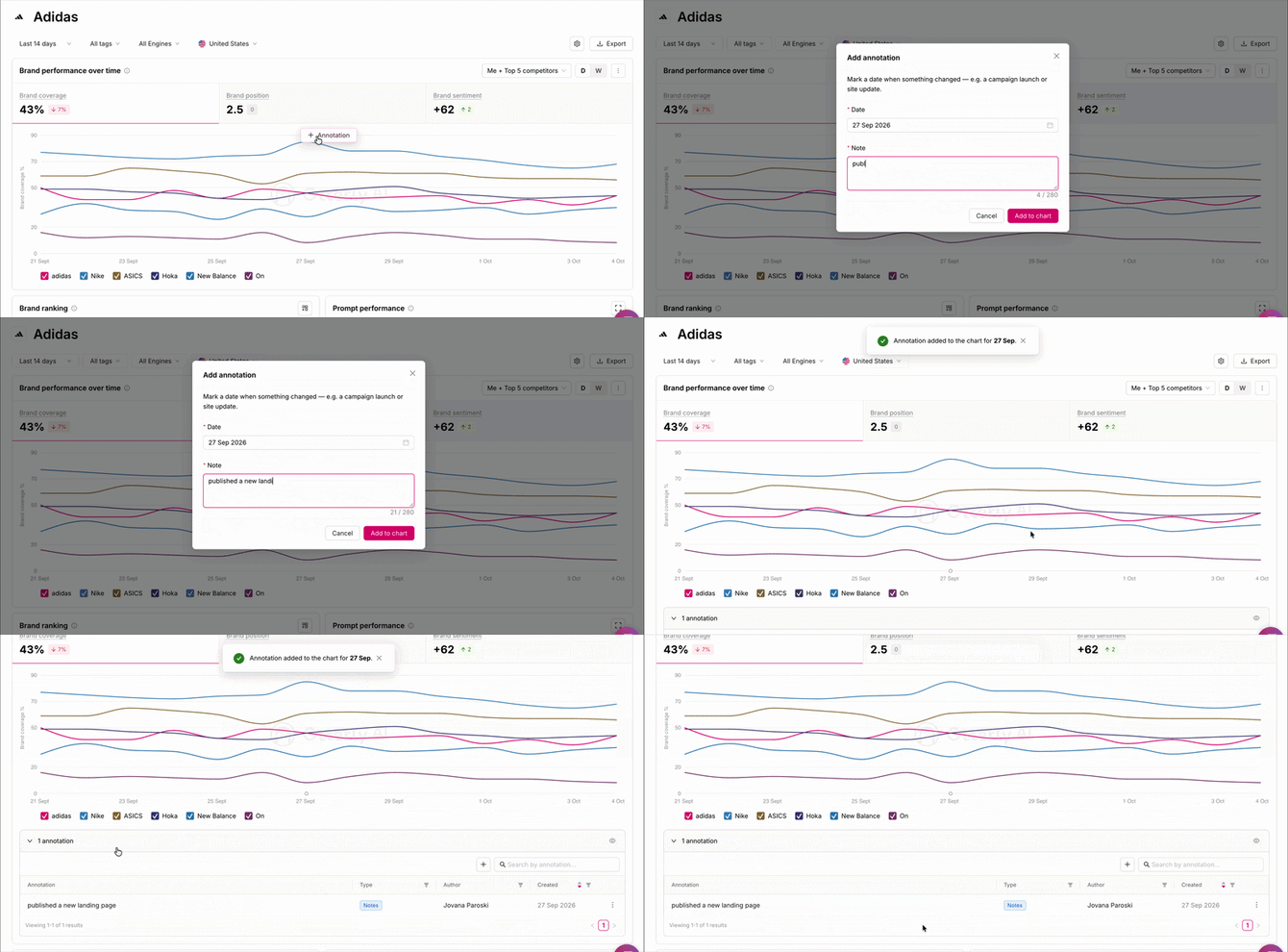
All annotations show up in two places:
- On the chart timeline, as a dot on the date of the action.
- In the annotations table below the chart, which lists every annotation.
The Type column in the table tells you where each annotation came from: Recommendations (added when you complete a recommendation) or Notes (added by you).
To edit or delete an annotation, click the three dots next to it in the annotations table and choose Edit or Delete.