
Workspaces will allow you to keep every client, pitch, and experiment completely separate, while still giving your internal team access to the resources they need. You can create a dedicated Workspace for each client or brand, or spin up temporary Workspaces for proposals and experimental projects. Each workspace has its own prompts, brand reports, AI engines and team access.
Your team members can be assigned to multiple Workspaces, while clients only see the reports and data relevant to them.
Plans: Lite includes 1 workspace. Standard, Premium and Enterprise include unlimited workspaces.
How to Create a Workspace?
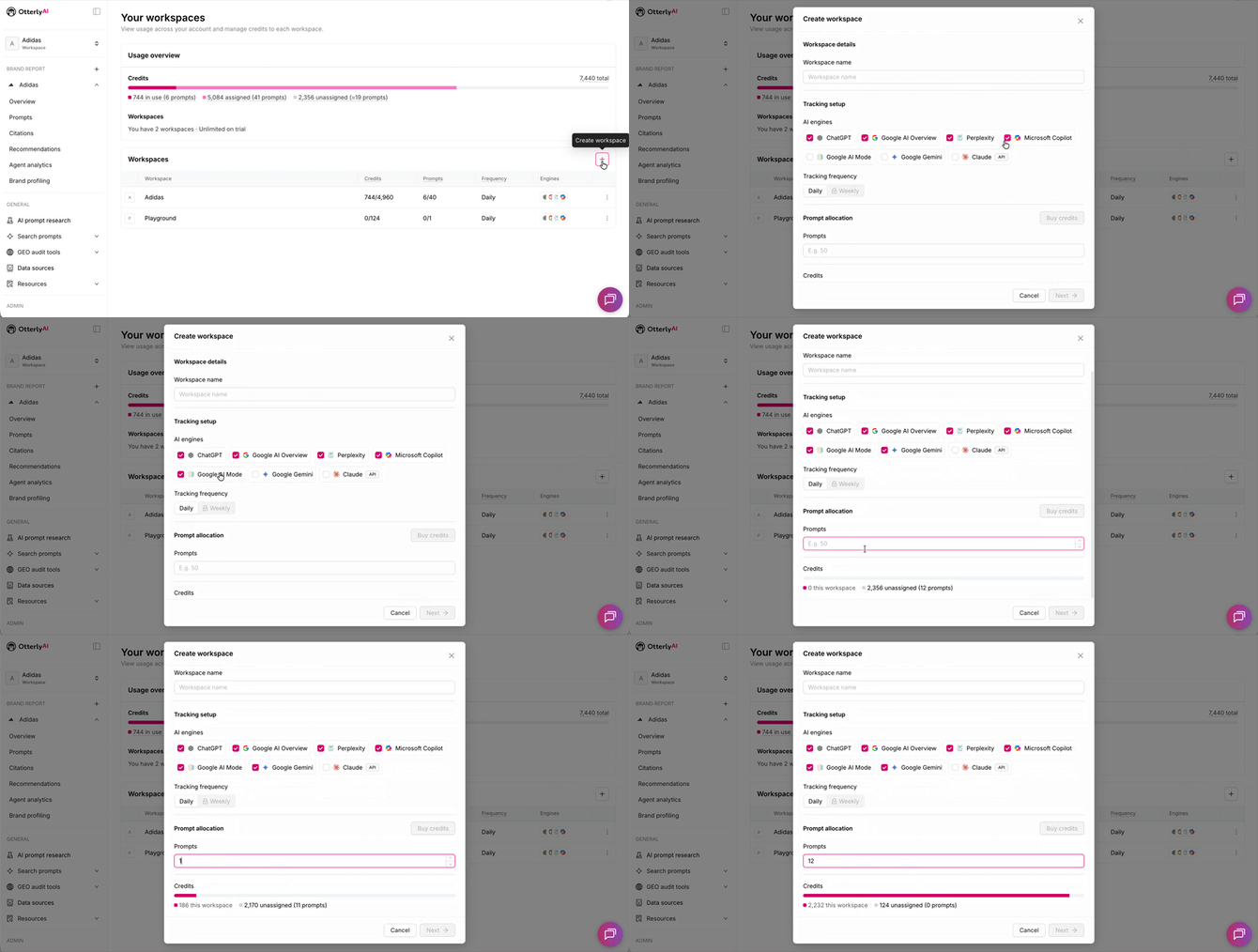
- Navigate to the Admin section in the left-hand menu and select Workspaces.
- Click the + (Create workspace) button.
- Enter a name for the Workspace, (if you forget to define the name, the "Next" button will be grayed out and won't allow you to save the settings).
- Assign initial resources by setting the number of prompts and AI engines. These allocations can be adjusted at any time. (if you assign more prompts than available, you'll be prompted to reassign the credits or deselect some AI engines)
- Click Next to save your changes and create the new Workspace.
How to add team members to the Workspace?
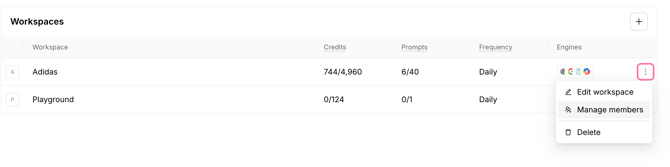
- Go to Admin > Workspaces.
- Click the three dots button next to the Workspace you wish to edit.
- Select Manage members.
- To add someone, type their email address and save the changes.
How to edit Workspace settings?
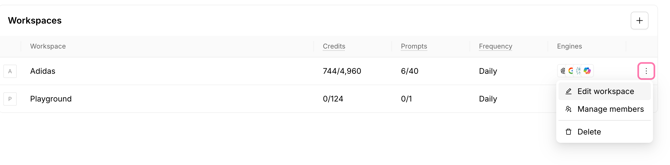
- Go to Admin > Workspaces.
- Click the three dots button next to the Workspace you wish to edit and select Edit workspace.
- In the edit mode you can:
- Rename the Workspace
- Add/change the icon
- Adjust prompts and AI engines assigned to the Workspace
- Adjust the frequency (on Premium and Enterprise)
4. Save changes
How to delete the Workspace?
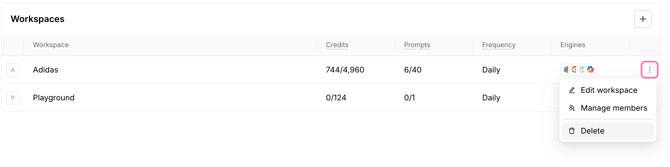
- Go to Admin > Workspaces.
- Click the three dots button next to the Workspace you wish to edit and select Delete.
- You'll be asked to confirm the deletion. Please keep in mind that this deletes all your data (prompts, brand reports, GEO audits, etc). Delete only when you are sure you want to remove a workspace.
Frequently asked questions:
Do all workspaces share one plan? Yes. Credits come from one subscription and you split them across workspaces.
Can two workspaces track different engines? Yes.
Who can manage workspaces? Admins. Roles explained →