
Yes. OtterlyAI offers several ways to export your data, share reports, and connect to external tools. This article gives you a complete overview of what's available and where to find each option.
Export options
| Export type | Format | Where to find it | Plans |
|---|---|---|---|
| Prompts export | CSV | Prompts → Export report button | All plans |
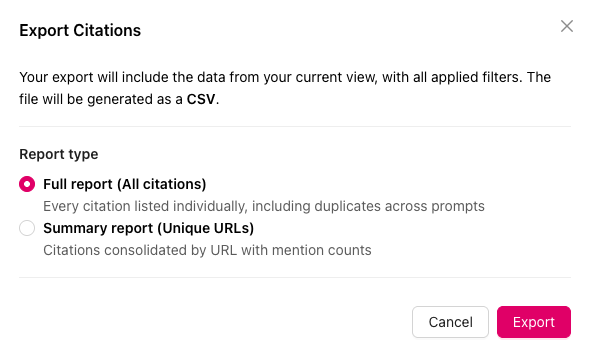
| Citations export (full report) | CSV | Brand Report → Citations section → Export report | All plans |
| Citations export (summary) | CSV | Brand Report → Citations section → Export report | All plans |
| Raw AI responses export | CSV, JSON | Prompt Detail → Responses section → Export button (above Run Date column) | All plans |
| GEO Audit report | GEO Audit → Download Report (upper right) | All plans | |
| Brand report overview | Brand Report → Export (upper right) | All plans | |
| Recommendations | CSV | Recommendations → Export button (next to the search bar) | All plans |
| Looker Studio connector | Live dashboard | Profile Settings (person icon in the upper right corner) → Integrations | Standard, Premium, Enterprise |
Search Prompts export (CSV)
How to export:
- Go to Prompts in the left navigation under Brand Report
- Click the Export as CSV button
-1.png?width=624&height=156&name=Screenshot%20(19)-1.png)
Fields included in the export:
| Field |
|---|
| Prompt |
| Country |
| Tags |
| Intent Volume |
| Total Citations |
| Your Brand Mentioned |
| Your Brand Rank |
| Your Domain Cited |
| Brand Sentiment |
| Brand Coverage |
| Ads |
| Shopping Cards |
| Competitor Mentioned |
| Competitor Cited |
Citations export (CSV)
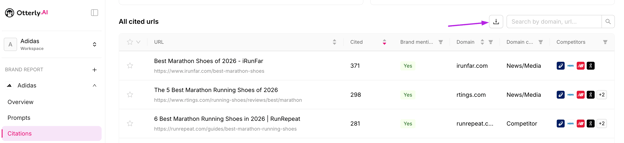
How to export:
- Open your Brand Report
- Navigate to the Citations section
- Click the Export as CSV button
- Choose between Full Report or Summary
Full report fields:
| Field |
|---|
| Prompt |
| Country |
| Service |
| Title |
| URL |
| Position |
| Date |
| Domain |
| Domain Category |
| Brand Mentioned on AI Response |
| Brand Mentioned on Cited Page |
| Competitors Mentioned |
| Starred |
| Times Cited |